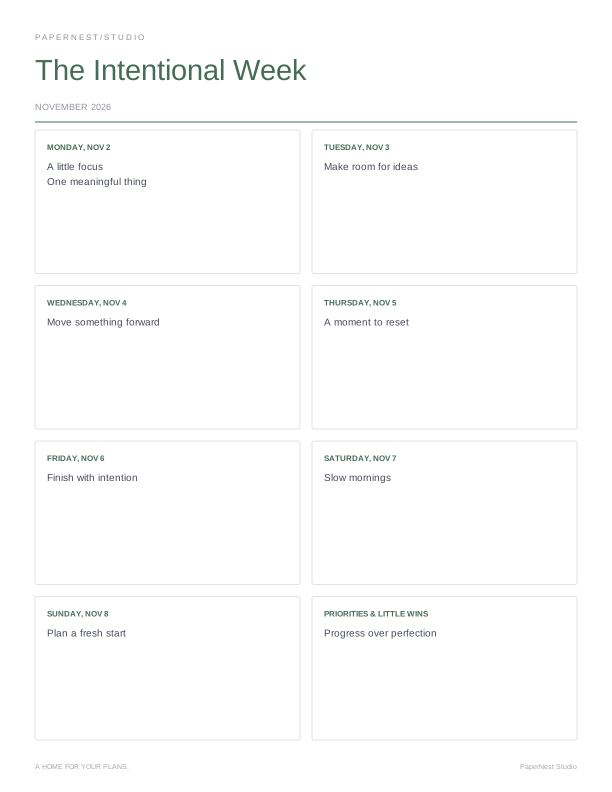
The Intentional Week
A complete week with room for the commitments, priorities, and small wins that matter.
FREE TO MAKEMake it yours ↗
Create daily, weekly, monthly, study, budget, habit, and content planners—all free to customize and download. Get inspiration from ChatGPT, Gemini, Claude, or Copilot, personalize your pages, and save printable PDFs.
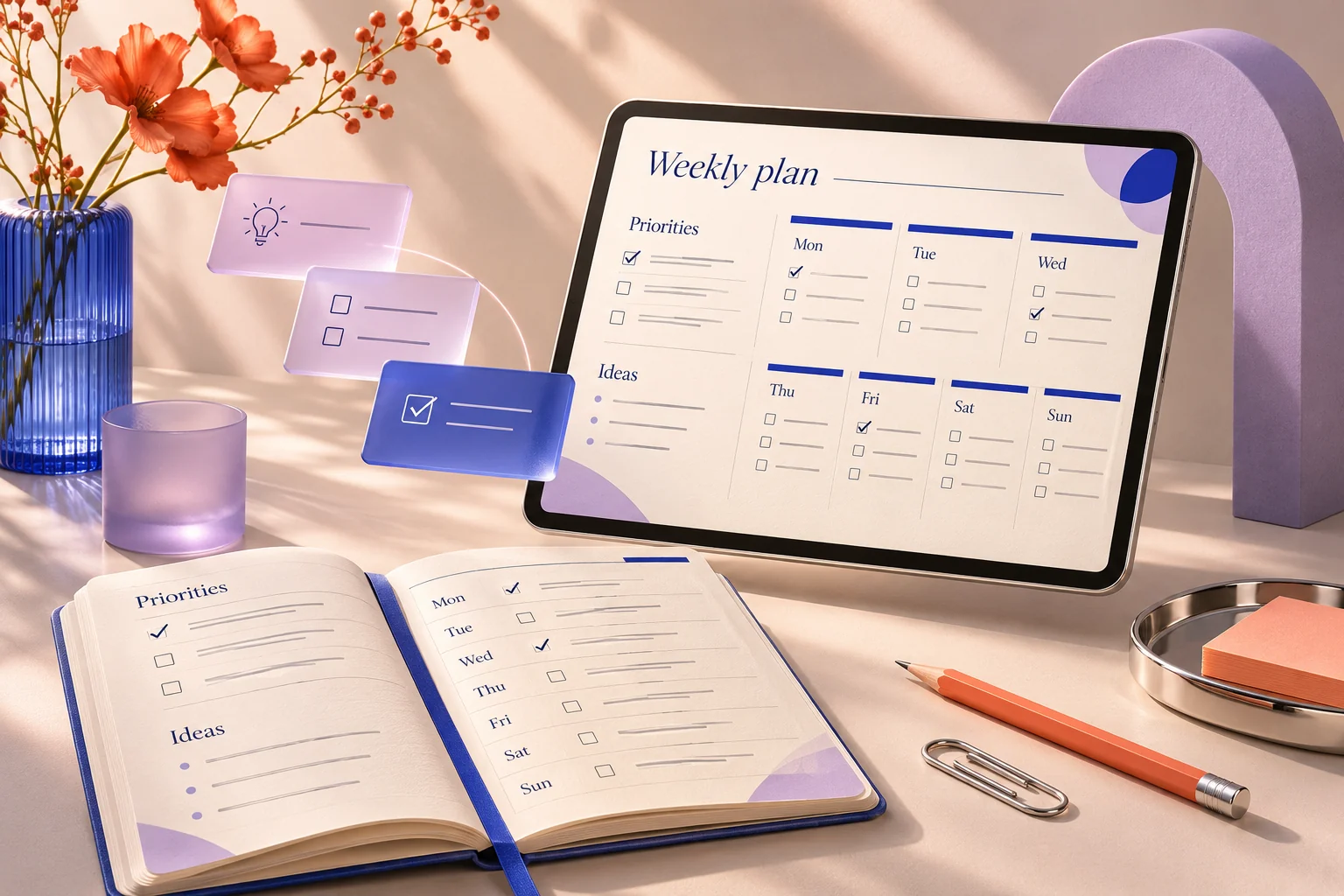
Bring a little clarity to your day, your next exam, or your next creative project. Start with a purpose, then make the page your own.
01 / EVERYDAY CLARITYTurn a scattered task list into a draft weekly plan with your preferred AI assistant. Review it, make it yours, and print it.
Plan your week with AI ↗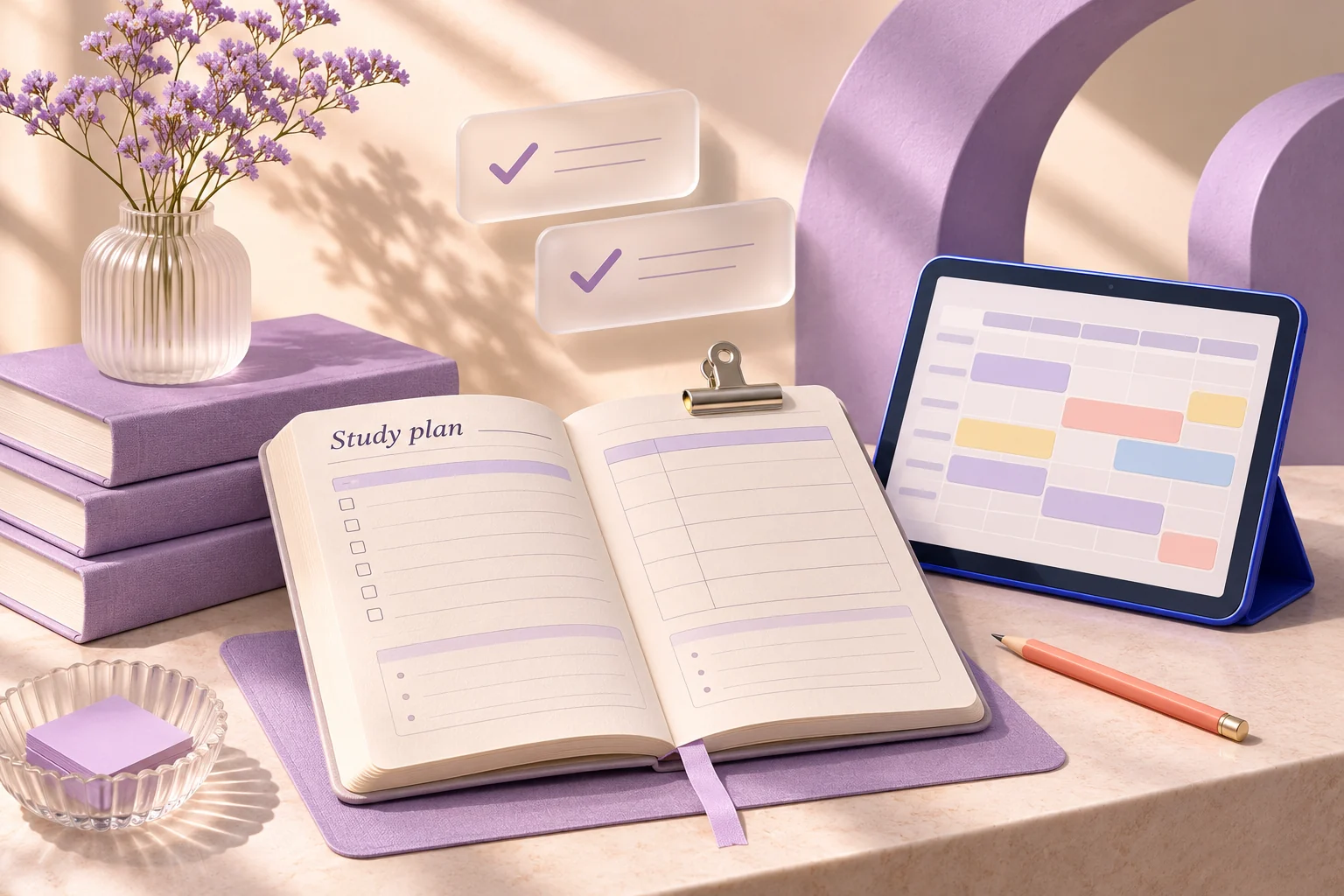 02 / FOCUSED STUDY
Describe your subjects, deadlines and available time. Explore an AI-generated revision draft, then adapt it to your own pace.
Create a study plan ↗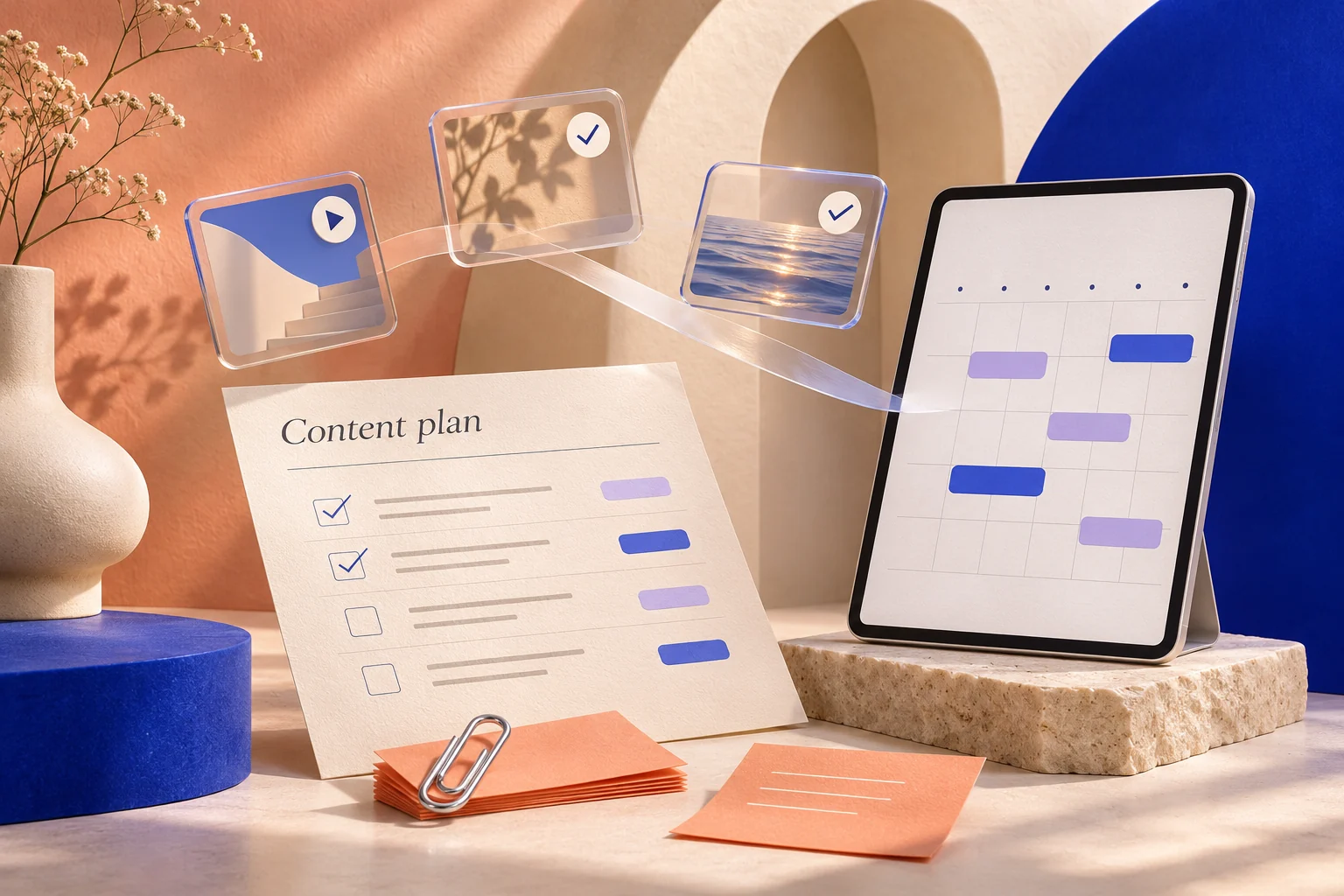 03 / CREATIVE MOMENTUM
Brainstorm themes and post ideas with ChatGPT, Gemini, Claude or Copilot. Bring the draft back into an editable content planner.
Shape your content plan ↗Concept visuals illustrating planning possibilities. Explore the template previews to see the actual editable layouts.
AI can help you find a starting point. PaperNest gives that draft a place to become something useful, editable, and yours.
Add your tasks, goals and the time you have. Include existing notes only if you choose.
Copy your prepared prompt and open your chosen AI service in a separate tab.
Paste the response back. Preview exactly which planner fields will change before applying it.
Edit the plan, change the design, and download your finished pages as a PDF.
For workdays and slow Sundays, fresh starts and familiar rhythms. Start with a layout that feels like you.
A complete week with room for the commitments, priorities, and small wins that matter.
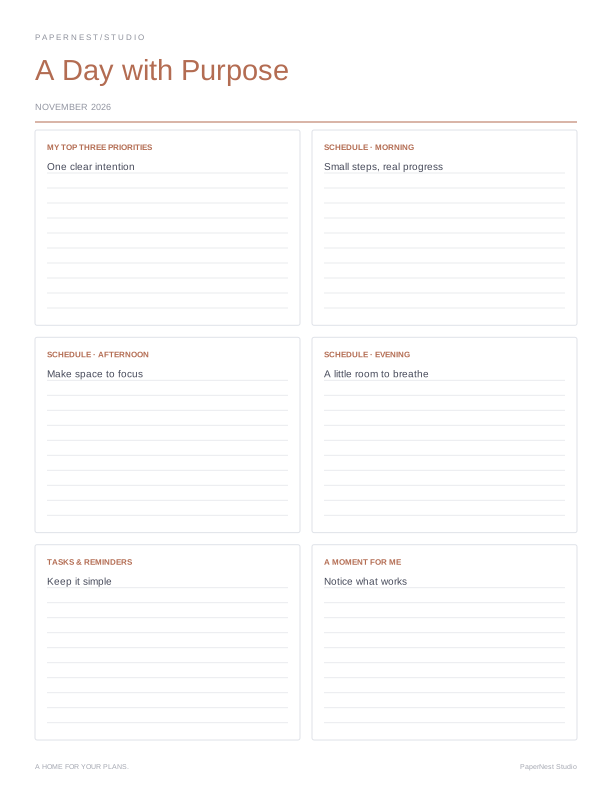
A focused daily page with a time-block schedule, top three tasks, and a thoughtful reset.
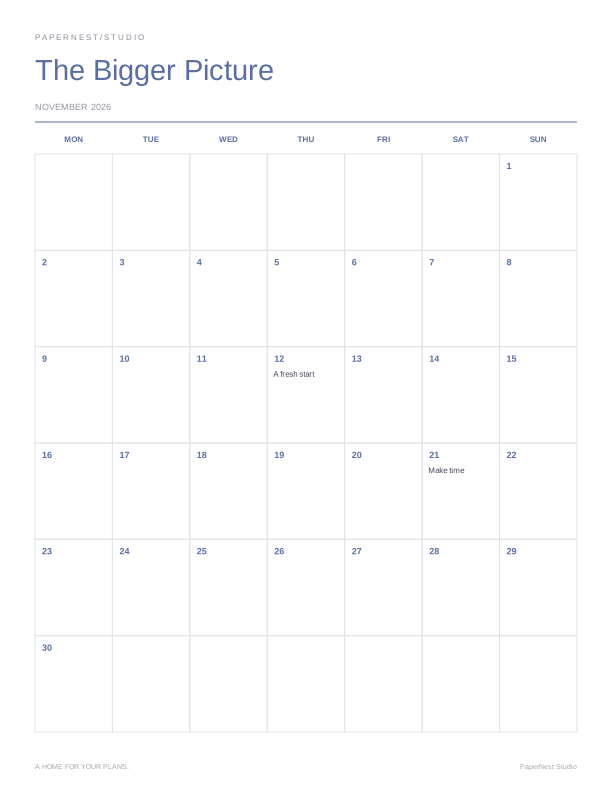
An accurate calendar for any month and year, ready for your dates, plans, and milestones.
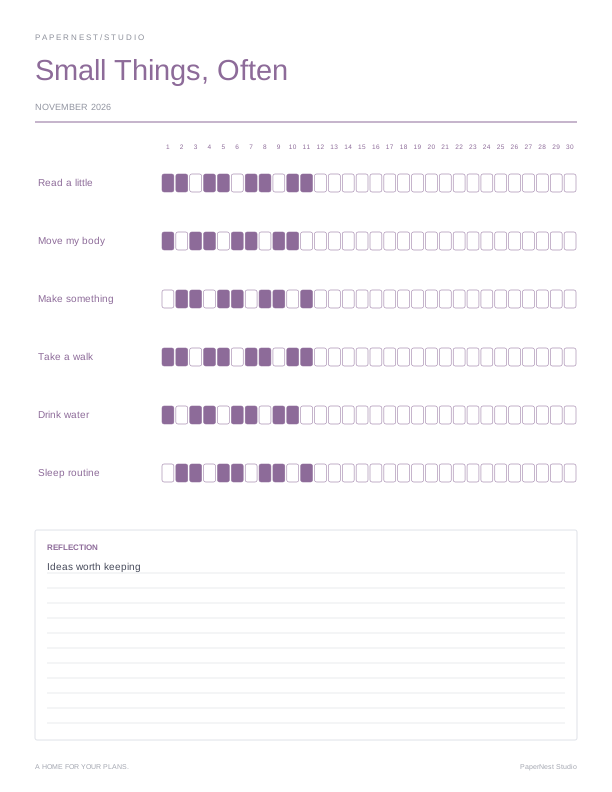
Track six habits across a full month and make small routines easier to see.
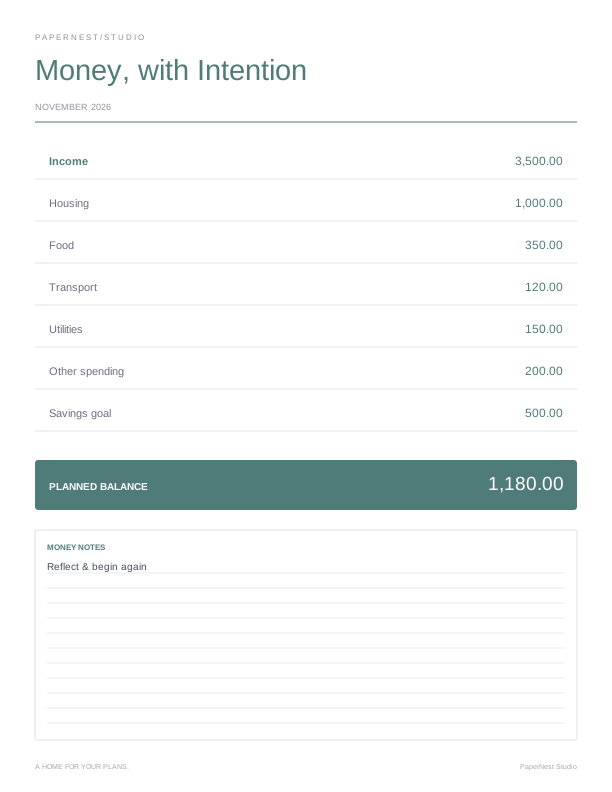
Plan monthly income, spending, and savings with a calculated balance to guide your review.
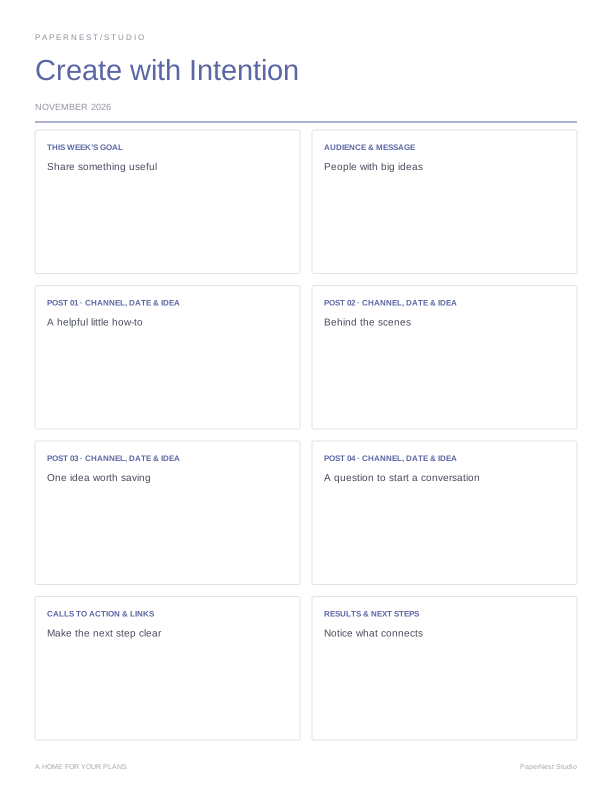
Give your next four posts a clear goal, audience, publishing plan, and useful review.
Choose your colors and fonts. Add a little finishing touch. Mix a weekly plan, a habit tracker, and a journal into one project. Every page is yours to shape.
Step inside the studio ↗Explore layouts for everyday life, work, study, and wellbeing. Open a preview to find the space you need.
Change the title, dates, colors and fonts. Add pages, reorder them, and undo a change whenever you need to.
Download a crisp PDF, print your pages, or keep a PNG. Save an editable backup so you can return to your project.
Start with one page. Add a little intention. See where it takes you.
Yes. All twelve templates, customization tools, and PDF and PNG exports are free. PaperNest requires no payment, subscription, or promo code. External AI services have their own account requirements and usage limits.
Yes. Open a template, customize it, then choose Download PDF. Your project downloads as a PDF with all its pages. You can mix different planner pages in one project.
Projects are saved in this browser on this device. They do not sync across devices. Clearing browser data can remove them, so download an editable JSON backup from the editor or My Planners.
Yes. Choose your page size under Design in the editor. Print the downloaded PDF at actual size, or 100%, on matching paper. Very small differences in printer margins may require a fit-to-page setting.
You can use the downloaded planners for personal use and internal business planning. Selling, sublicensing, or redistributing our template designs is not included. See our terms for details.
Open Plan with AI in the editor, describe your tasks and preferences, review the prepared prompt, then choose ChatGPT, Gemini, Claude or Copilot. The prompt is copied and the chosen service opens in a separate tab. Paste it there, then bring the JSON answer back to PaperNest to preview and apply.
No. These are external-service launch buttons and a local prompt builder. PaperNest does not call an AI API, run a built-in chatbot, or receive answers automatically. The services are provided by their respective companies.
PaperNest requires no API key or payment for this workflow. Each external service has its own sign-in requirements, available plans and usage limits. PaperNest does not provide or guarantee unlimited free access to those services.
No. Existing notes and planning dates are excluded by default. You can choose to include them in the prompt and review the full text before copying it. Only what you paste into an external service is sent to that service, under its own terms and privacy policy.
Ask the assistant to follow the JSON format in the prepared prompt. Copy its answer into Paste the AI response, select Preview draft, and review the matching fields. Apply reviewed draft replaces only the displayed fields and any displayed page title. You can edit or undo the change.
PaperNest checks the response structure before allowing import. If it is not valid JSON, ask the assistant to follow the original prompt format. Review all dates, commitments and numbers yourself. Notes that do not fit a page produce a preview warning; shorten them or add another page.