Your plans.
A fresh AI perspective.
Draft a week, a study schedule, a content calendar or your next project with your preferred assistant. Bring the result back into a planner you can edit and print.
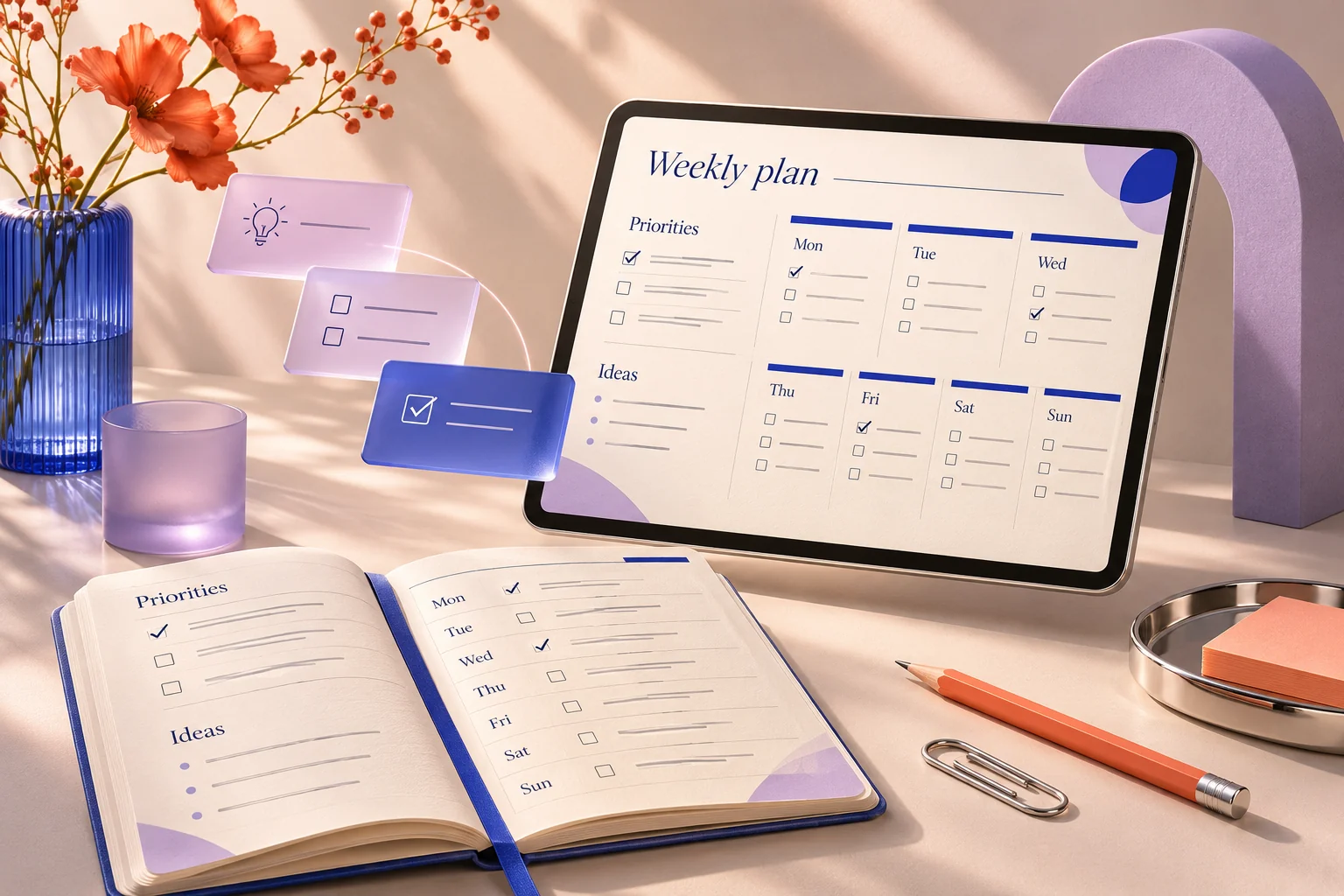 Your ideas → A draft → Your planner
Put your ideas into words.
Open Plan with AI inside the editor. Add tasks, goals and preferences. Choose whether to include existing notes or dates, then inspect the exact prompt.
Use the assistant you prefer.
Select ChatGPT, Gemini, Claude or Copilot. PaperNest copies the prompt and opens that service in a separate tab. Paste it there and request a draft.
Review, apply and refine.
Paste the JSON answer back into PaperNest. Preview the fields that will change, apply the draft, then edit or undo it before downloading your PDF.
Useful ways to get started
- Weekly planning: organize tasks around the time you have available.
- Study schedules: break revision into manageable sessions around your deadlines.
- Content planning: brainstorm post ideas, channels and calls to action.
- Goals and projects: turn an outcome into milestones and next actions.
PaperNest provides a prompt builder, external links and a reviewed response importer. It does not operate an embedded chatbot or call AI APIs. Answers do not return automatically. Each external service controls its own sign-in, plans, limits and privacy terms.
No payment or API key is required by PaperNest for this workflow. Availability of free access from the chosen AI service is not guaranteed. PaperNest is not affiliated with or endorsed by these providers.
Better context.
More useful first drafts.
You do not need a perfect prompt. Tell the assistant what you want to accomplish, what time you have, and what should stay flexible. PaperNest prepares the structure so the answer can fit your selected template.
Example: a manageable week
“I need to finish a proposal, organize my files, and read for 20 minutes. I have one focused hour each weekday morning. Keep Friday light.”
Example: a study schedule
“Help me revise biology and history for two deadlines next month. I have 45 minutes on weekdays and two hours on Saturday. Include short review sessions.”
Example: a creator's content plan
“Brainstorm four helpful posts for a small stationery business. Use a mix of a practical tip, a behind-the-scenes idea, a question, and a product-use example.”
The result is a suggestion, not a verified schedule. Review all dates, workload, facts and numbers yourself. Keep what helps and change the rest.
Your AI planning questions
How does Plan with AI work?
Open Plan with AI in the editor, describe your tasks and preferences, review the prepared prompt, then choose ChatGPT, Gemini, Claude or Copilot. The prompt is copied and the chosen service opens in a separate tab. Paste it there, then bring the JSON answer back to PaperNest to preview and apply.
Is ChatGPT or another AI built into PaperNest?
No. These are external-service launch buttons and a local prompt builder. PaperNest does not call an AI API, run a built-in chatbot, or receive answers automatically. The services are provided by their respective companies.
Do I need an API key or a paid subscription?
PaperNest requires no API key or payment for this workflow. Each external service has its own sign-in requirements, available plans and usage limits. PaperNest does not provide or guarantee unlimited free access to those services.
Are my planner notes shared automatically?
No. Existing notes and planning dates are excluded by default. You can choose to include them in the prompt and review the full text before copying it. Only what you paste into an external service is sent to that service, under its own terms and privacy policy.
How do I bring an AI plan back into my planner?
Ask the assistant to follow the JSON format in the prepared prompt. Copy its answer into Paste the AI response, select Preview draft, and review the matching fields. Apply reviewed draft replaces only the displayed fields and any displayed page title. You can edit or undo the change.
What if the assistant returns a different format or makes a mistake?
PaperNest checks the response structure before allowing import. If it is not valid JSON, ask the assistant to follow the original prompt format. Review all dates, commitments and numbers yourself. Notes that do not fit a page produce a preview warning; shorten them or add another page.
From a fresh idea to a fresh page.
Keep what helps, change what doesn't, and make the plan your own.